

Every headless CMS promises API flexibility. Almost none sell admin flexibility. The admin panel stayed a black box you theme, not a surface you extend. And often teams face this problem: the workflow of editors or administrators in a CMS system, where everything is pre-defined for you, may not correspond to the real workflow of the business. For example, it would be useful to extend the CMS with features the business actually needs — A/B testing on page variants, a comments panel for reviewers, block presets and visual editing for editors, scheduled publication, AI-assisted translation of documents or GA4 analytics.
The fix isn’t a better default admin. It’s an admin you extend the same way you extend the rest of your app — replacing pieces of the existing editor, building new pages the CMS never imagined, packaging both into reusable extensions.
Why Payload fits the criteria
Payload’s v3 admin installs into a Next.js app — admin, backend, and public site share one codebase. Custom components are React Server Components by default, so admin pages can call the Local API directly, no HTTP layer. A custom view is a config field pointing to a component path — no ejection, no fork. The stack is TypeScript end to end, and @payloadcms/ui exposes the same primitives Payload uses internally for visual consistency. Other open-source CMSes allow customization, but most isolate it behind a plugin sandbox or override-only model.open-source CMSes allow customization, but most isolate it behind a plugin sandbox or override-only model.
Grouping fields
Payload lets you shape the editor’s form through configuration — with a set of field types whose only job is to organize other fields.
Five field types do the work:
-
Tabs split a long document into switchable panes, so content and SEO stop piling into one endless scroll.
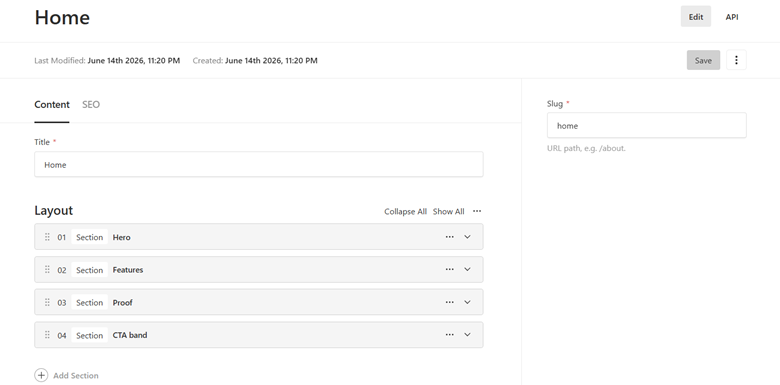 A Payload edit screen split into Content and SEO tabs along the top — the active Content tab shows the Title field and a Layout block list, keeping SEO fields out of the way on a separate pane.
 -
Group bundles related fields under one label — and one key in the saved data — turning loose inputs into a named unit like an SEO meta block.
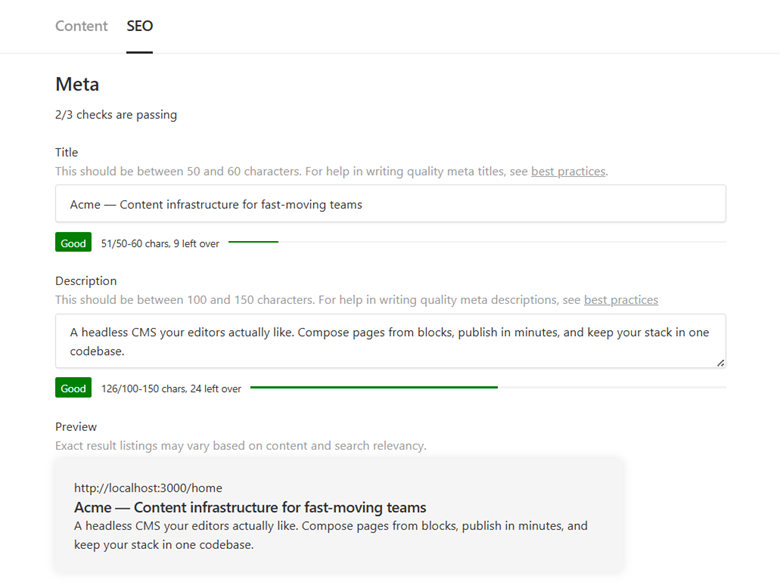 The SEO tab showing a Meta group that bundles Title, Description, and Preview fields under one heading — a set of related inputs presented as a single named unit.
 -
Row lays fields side by side instead of stacking them.
 Two fields laid out side by side on one row — an Eyebrow text input on the left and an Align select set to Center on the right — instead of stacked vertically.
 -
Collapsible tucks advanced controls behind a header that starts closed, keeping the common path uncluttered.
-
Fields expose a handful of replaceable parts — list-view cell, filter, label, description, error, before and after input components — so you can swap one without touching the rest, or replace the
Fieldcomponent itself to take over the entire input while Payload still wires it to form state, for example image previews for select fields.
The anatomy of UI in Payload CMS
Customization in Payload is available at the following levels:
- Views are the top-level admin routes —
dashboard,account, plus arbitrary keys you register at a path. - Fields expose a handful of replaceable parts — list-view cell, filter, label, description, error, before and after input components — so you can swap one without touching the rest, or replace the
Fieldcomponent itself to take over the entire input while Payload still wires it to form state. - Slot arrays like
beforeDashboardorafterNavLinksare lists of component paths that let you pointwise embed components into the existing admin UI without replacing what’s already there. - Providers wrap the entire admin in your own React context — auth flags, theming, analytics, feature flags.
What makes a custom screen in Payload feel first-class is what your component receives at runtime. Every component is passed the same defaults: preferences for the document, locale, the authenticated user and various field properties. Server components additionally receive the Payload instance, the i18n object, the current field value, sibling field data, and the current document data. Custom Views get all of that plus the request’s URL params and searchParams. And because the Payload instance is already in scope, calling the Local API from an admin page is just a typed function call — how Payload’s admin and Local API are built — against the same database your collections live in, with the editor’s permissions already applied.
Every customization is a config field that points to a component path. Both server and client components are supported — server-rendered by default, with 'use client' at the top of the file flipping the component to client. Payload reads the directive when it resolves the path; the runtime is declared in the file, not in the config.
import { buildConfig } from "payload";

export default buildConfig({
  admin: {
    components: {
      views: {
        dashboard: {
          Component: "/components/CustomDashboard",
        },
      },
      beforeNavLinks: ["/components/EnvBadge"],
      providers: ["/components/AnalyticsProvider"],
    },
  },
});
Using paths instead of imports is a deliberate boundary, not a stylistic one. If payload.config.ts imported a component directly, the config module would drag the admin UI’s entire dependency graph — React, @payloadcms/ui, your client hooks — into the same context as your database driver and secrets. Every CLI command, migration, or edge handler that loads the config would have to evaluate admin code it has no business rendering. The string path defers that work: Payload treats the config as serializable data, then resolves and bundles each component in the right context. The server/client boundary stays clean because the config never crossed it.
Why custom UI feels first-class
What makes a custom screen in Payload feel first-class is what your component receives at runtime. Every component is passed the same defaults: preferences for the document, locale, the authenticated user and various field properties. Server components additionally receive the Payload instance, the i18n object, the current field value, sibling field data, and the current document data. Custom Views get all of that plus the request’s URL params and searchParams. And because the Payload instance is already in scope, calling the Local API from an admin page is just a typed function call — against the same database your collections live in, with the editor’s permissions already applied.
import type { AdminViewServerProps } from "payload";

export default async function ReviewQueue({
- **Editorial calendar** — a single grid showing every upcoming post across all content types — articles, landing pages, products, whatever you have. Editors drag a post to a new date to reschedule it, and see at a glance which language versions are ready and which are still pending.
- **Translation workspace** — one screen where [AI translates a document into every language](/headless-cms-content-localization-with-ai/) the site supports and lays the versions out side by side. The editor reviews and approves them all in one pass instead of opening each language separately.
- **Moderation queue** — a single list of every document waiting for review, filtered by who needs to approve it and when it's due. Approve and reject buttons only show up for reviewers who actually have permission to act on that item.
- **Operations dashboard** — each piece of content shown next to the business signals attached to it — search ranking, conversion rate, open support tickets — so editors can see at a glance which pages need attention next.
    req: { payload, user },
  },
}: AdminViewServerProps) {
  const queue = await payload.find({
    collection: "pages",
    where: { _status: { equals: "pending" } },
    user,
  });

  return <p>{queue.totalDocs} pages waiting for review</p>;
}
When a component needs interactivity, 'use client' opts in and @payloadcms/ui exposes the same hooks Payload uses internally — so a custom field, button, or panel reads from the admin’s live state instead of trying to reconstruct it.
@mentions with email notifications pull reviewers in by name. Typing @ in a comment opens an autocomplete over your users collection, so mentions resolve against the same identities Payload already authenticates — no second user list, no synced lookup table. The mentioned user receives an email with a direct link to the thread, which means the loop closes even when the reviewer hasn’t opened the admin that week. That matters most on agency-client projects, where reviewers are stakeholders who log in 7 user roles across 9 languages, not daily editors.
- Identity and config.
useAuth<User>()returns the logged-in user, typed against yourUsercollection.useConfig()reads the serializable client config —serverURL, routes, the collection list.useLocale()gives the active locale object;useTranslation()resolves built-in and custom translation keys. - Form and field state.
useField()is the entry point for a custom field — current value, setter, and validation flags, all wired to form state.useForm()exposes the full form API:submit,validateForm,dispatchFields,getData,getSiblingData,addFieldRow,reset.useFormFields(selector)lets you subscribe to a specific slice of the form so unrelated edits don’t re-render your component. - Document context.
useDocumentInfo()surfaces the current document’s id, version count, publish and lock status, upload status, and methods likeunlockDocumentandupdateSavedDocumentData.useDocumentEvents()listens for updates happening in nested drawers — useful when a side panel needs to react to a doc saved elsewhere in the UI. - List view. Inside a custom list component,
useListQuery()returns the currentdata,query, and handlers for paging, search, sort, andwherefiltering.useTableColumns()toggles column visibility or resets to the collection’s defaults. - Chrome and UX.
useStepNav()rewrites the breadcrumb in the admin header.useTheme()exposes light/dark/auto and a setter.useEditDepth()returns how deeply the component is nested inside drawers — handy for adjusting layout inside a modal stack.usePreferences()reads and writes per-user, per-key state that Payload persists across sessions.
A custom field is a first-class participant in the form, not a detached widget calling out to it. A custom screen reads from the same database, renders with the same primitives, and ships in the same deploy as the rest of the admin.
Custom dashboard
The dashboard is the page every editor lands on after login — by default a thin shell with a welcome heading and the list of collections and globals. Payload v3.79 made that shell composable: the home screen is no longer a single view to replace but a grid of widgets editors arrange themselves.
When Payload boots, that commentsPlugin(...) call receives the host config and returns a transformed one. It walks every collection and every global in the host config and injects our FieldCommentLabel component into each field’s admin label — that single patch is what produces the per-field comment badge editors see everywhere. It registers a hidden comments collection that stores the underlying data: collection slug, document id, field path, locale, mentions, resolution state. And it appends two providers and one header action to admin.components so the document-scoped state and the global drawer are available on every admin page. the same pattern behind our AI content agent.
A plugin is what turns a one-off admin idea into a versioned, installable product — the same wiring ships across every project that needs it, without being rebuilt.
Build custom admin UI with Payload CMS
If you need admin screens, workflows, or editor tools that match how your team actually works, we build that with Payload CMS development.
import { buildConfig } from "payload";

export default buildConfig({
  admin: {
    dashboard: {
      widgets: [
        {
          slug: "editorial-calendar-digest",
          Component: "/components/dashboard/EditorialCalendarDigest",
          fields: [
            {
              name: "rangeDays",
              type: "select",
              defaultValue: 7,
              options: [
                { label: "Next 7 days", value: 7 },
                { label: "Next 14 days", value: 14 },
              ],
            },
          ],
          minWidth: "medium",
          maxWidth: "full",
        },
      ],
      defaultLayout: () => [
        { widgetSlug: "collections", width: "full" },
        {
          widgetSlug: "editorial-calendar-digest",
          data: { rangeDays: 7 },
          width: "medium",
        },
      ],
    },
  },
});
The widget component itself is a normal React Server Component receiving WidgetServerProps<TWidget> — TWidget is typed against the fields you declared, the Payload instance is already in scope, and the Local API is one typed call away. Once a widget is registered, the per-editor customization that follows lives entirely in Payload’s UI: from the breadcrumb’s “Edit Dashboard” menu, editors add or remove widgets through a picker, drag them into a new order, resize each one between its declared minWidth and maxWidth, and edit a widget’s fields inline through the same form rendering that powers the rest of the admin. Changes save per user; a “Reset Layout” option reverts to whatever defaultLayout returned. The contract is clean — the developer ships widgets and a default arrangement, the editor owns the screen from there.
Demonstration of how widgets work
We used that API to build two widgets in our demo project — a calendar digest and an analytics snapshot — each tied to a real editor pain.
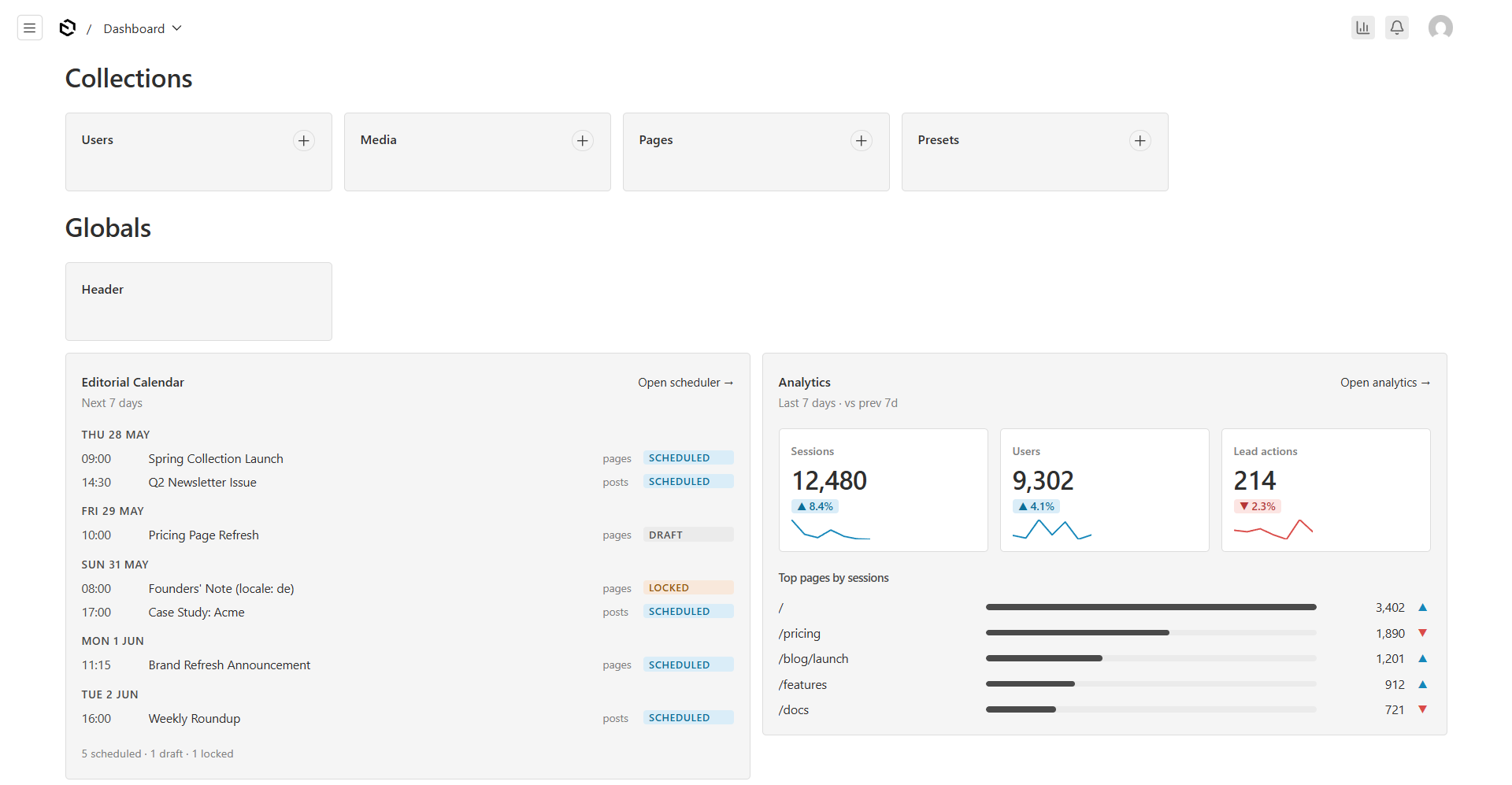 Our demo dashboard — the default Collections and Globals shells on top, the editorial-calendar and analytics widgets arranged side by side below.
Editorial Calendar Digest. An editor opens the admin and can’t see at a glance what’s queued to publish this week, which posts are still drafts, and which are locked by a colleague. The information lives spread across collection list views, version drawers, and the locking system; reconstructing the week takes a click into every collection.
Our calendar digest groups the next seven days of scheduled posts by date in a single card. Each row shows the scheduled time, the title, the source collection, and a status pill — SCHEDULED, DRAFT, or LOCKED. A footer line totals what the week holds, and a rangeDays field lets editors switch time periods without leaving the dashboard.
The business value is that the editorial pipeline becomes visible from the screen everyone opens first — content slipping past its publish slot, drafts that never made it to review, locks left on overnight all surface on the home screen instead of in a Monday morning audit.
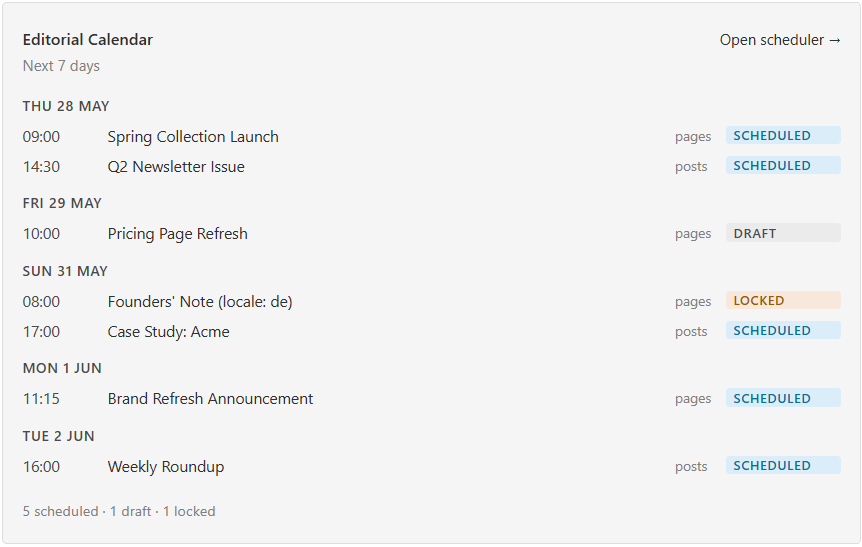 An editorial-calendar digest grouped by date across the next seven days — each row shows the scheduled time, title, source collection, and a SCHEDULED, DRAFT, or LOCKED status pill.
Analytics Snapshot. The numbers an editor would want first — did last week’s posts pull traffic, did anything convert into a lead — live in GA4, behind a separate login and a UI editors don’t carry in their head. Every check is a context switch out of the tool they were editing in. Our analytics snapshot renders the headline view inline: a KPI strip with sessions, users, and lead actions for the chosen lookback window, each with a previous-period delta pill and an inline sparkline; underneath, a five-row “Top pages by sessions” BarList with a direction-only trend arrow per row. The business value is that the loop between publishing a page and knowing it worked closes inside the admin: the editor doesn’t have to log into GA4 to see whether last week’s launch moved sessions or generated leads, and a team lead can scan the snapshot at the start of stand-up instead of pulling up a separate dashboard.
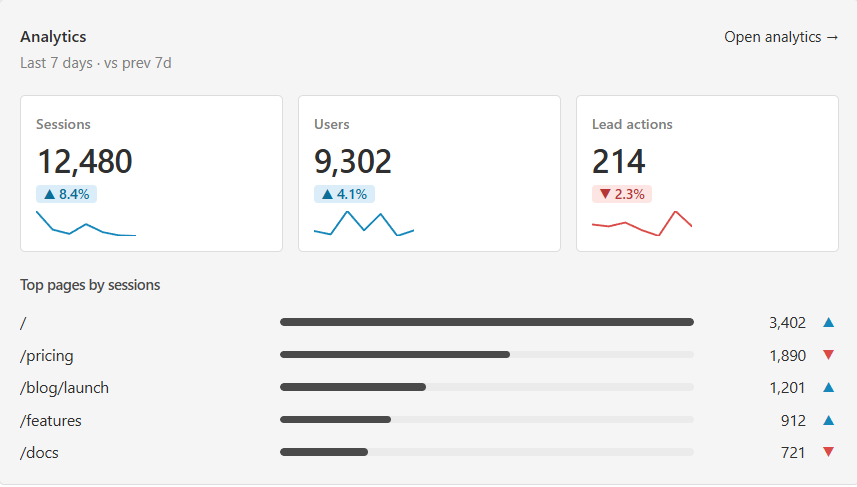 An analytics snapshot — KPI strip with sessions, users, and lead actions, each with a previous-period delta pill and an inline sparkline, plus a five-row top-pages BarList beneath.
A modular dashboard is what turns the admin’s home screen from a vendor default into a deliberate first surface — one the team composes around the work that actually fills the day.
Fully custom pages for unique logic
A separate page is great when the implemented functionality on the page is self-sufficient and quite extensive so that it can be - placed on a new page. A few examples of what that can look like:
- Editorial calendar — a single grid showing every upcoming post across all content types — articles, landing pages, products, whatever you have. Editors drag a post to a new date to reschedule it, and see at a glance which language versions are ready and which are still pending.
- Translation workspace — one screen where AI translates a document into every language the site supports and lays the versions out side by side. The editor reviews and approves them all in one pass instead of opening each language separately.
- Moderation queue — a single list of every document waiting for review, filtered by who needs to approve it and when it’s due. Approve and reject buttons only show up for reviewers who actually have permission to act on that item.
- Operations dashboard — each piece of content shown next to the business signals attached to it — search ranking, conversion rate, open support tickets — so editors can see at a glance which pages need attention next.
An admin analytics view
An editor publishes a page and wants to know if it actually worked — which sources brought traffic, which pages converted into a phone-tap or form submit, which sessions ended in a lead action. The numbers live in GA4: separate login, separate UI, a mental model most editors don’t carry, and every check is a context switch out of the tool they were just editing in.
Imagine a /admin/analytics view registered as a fully custom page. It calls the GA4 Data API from a server component and renders the shapes editors already recognize — KPI cards, top pages, lead-action counts, a session drill-down — using @payloadcms/ui primitives so the screen sits inside the admin like a native surface.
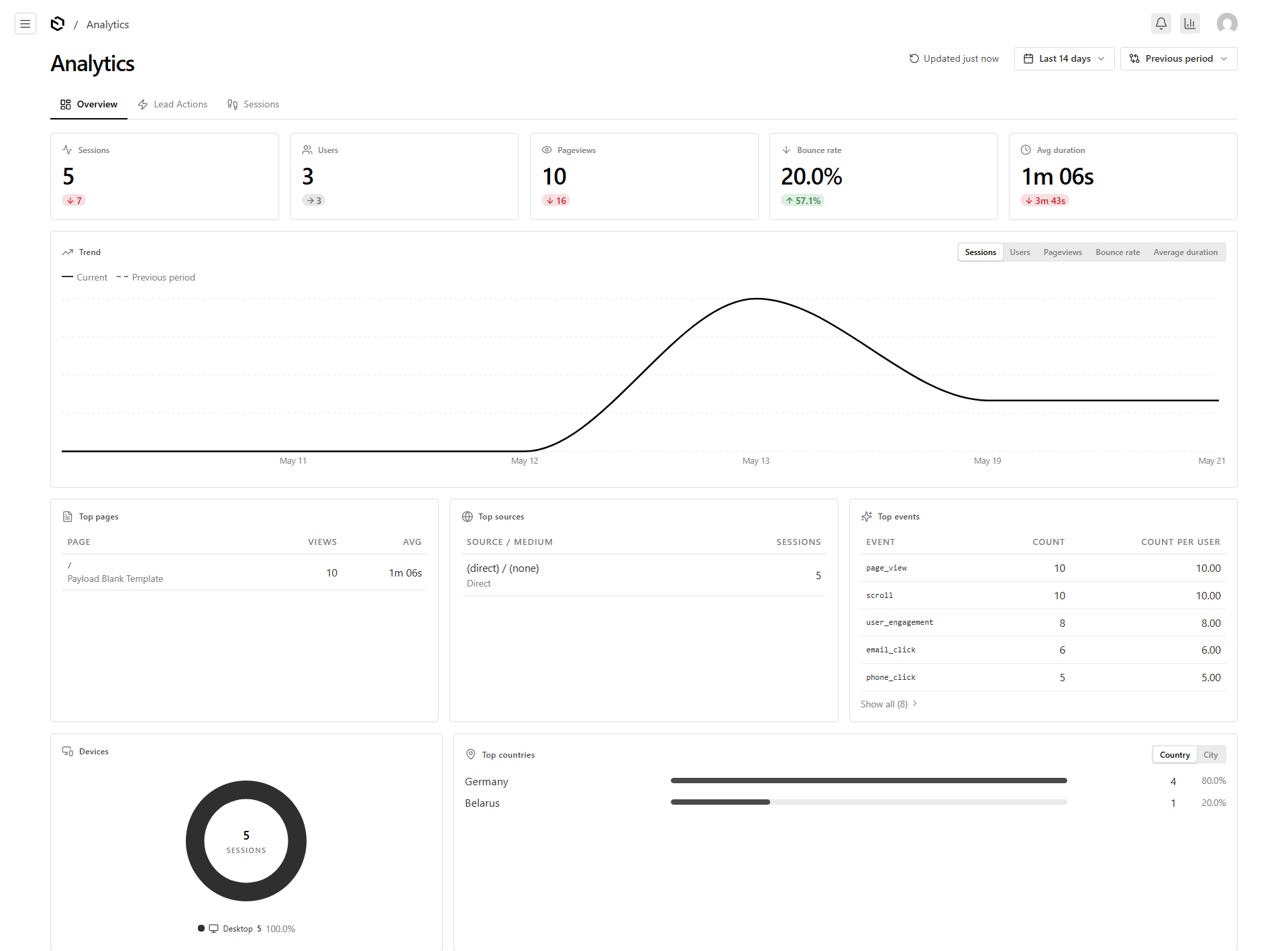 An analytics view inside the admin: GA4 data rendered with the same primitives as the rest of Payload.
A fully custom page is what turns the admin from the place where content gets edited into the place where the business problems that content has to solve get worked on next to it.
Plugins: custom UI for absolutely any idea
A Payload plugin is a (Config) => Config function. Inside it can register a new collection, attach providers to the admin, override field labels across every collection, hook into document lifecycle events, and inject buttons into the admin header — all at once. The host project doesn’t fork anything. It adds one entry to plugins.
The editorial-review workflow it solves
Every content team runs the same loop. A reviewer opens a draft, has feedback on one paragraph or one CTA, and the feedback ends up as a Slack screenshot, an email reply, or a meeting bullet. The note lives outside the document; the editor reconstructs context from a screenshot every time.
Our comments plugin folds that loop back into the admin itself.
Field-level and document-level comments attach feedback to the thing it’s about. Every field label in every collection and global gets a comment badge — open it and the thread sits on that exact field path, locale-aware, so a note on the German hero headline doesn’t bleed into the English one. Review cycles stop losing rounds to “which field did you mean?” — every note arrives with its context already attached, so the next pass starts from the feedback instead of from reconstructing what it was about.
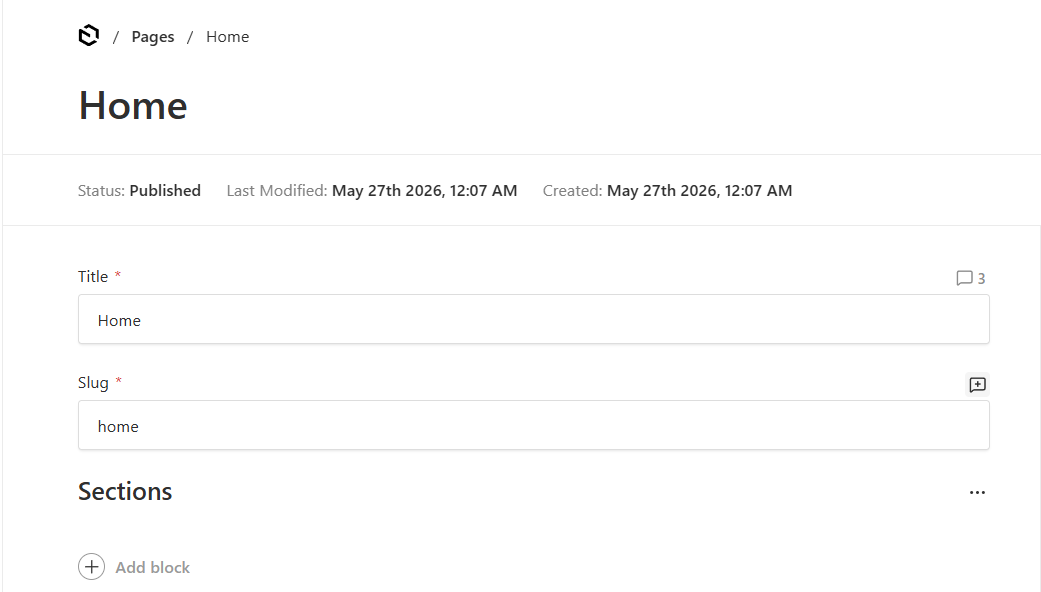 Comment badges sit next to every field label in the admin — the Title field shows a thread count, the Slug field shows the "add comment" affordance.
@mentions with email notifications pull reviewers in by name. Typing @ in a comment opens an autocomplete over your users collection, so mentions resolve against the same identities Payload already authenticates — no second user list, no synced lookup table. The mentioned user receives an email with a direct link to the thread, which means the loop closes even when the reviewer hasn’t opened the admin that week. That matters most on agency-client projects, where reviewers are stakeholders who log in twice a month, not daily editors.
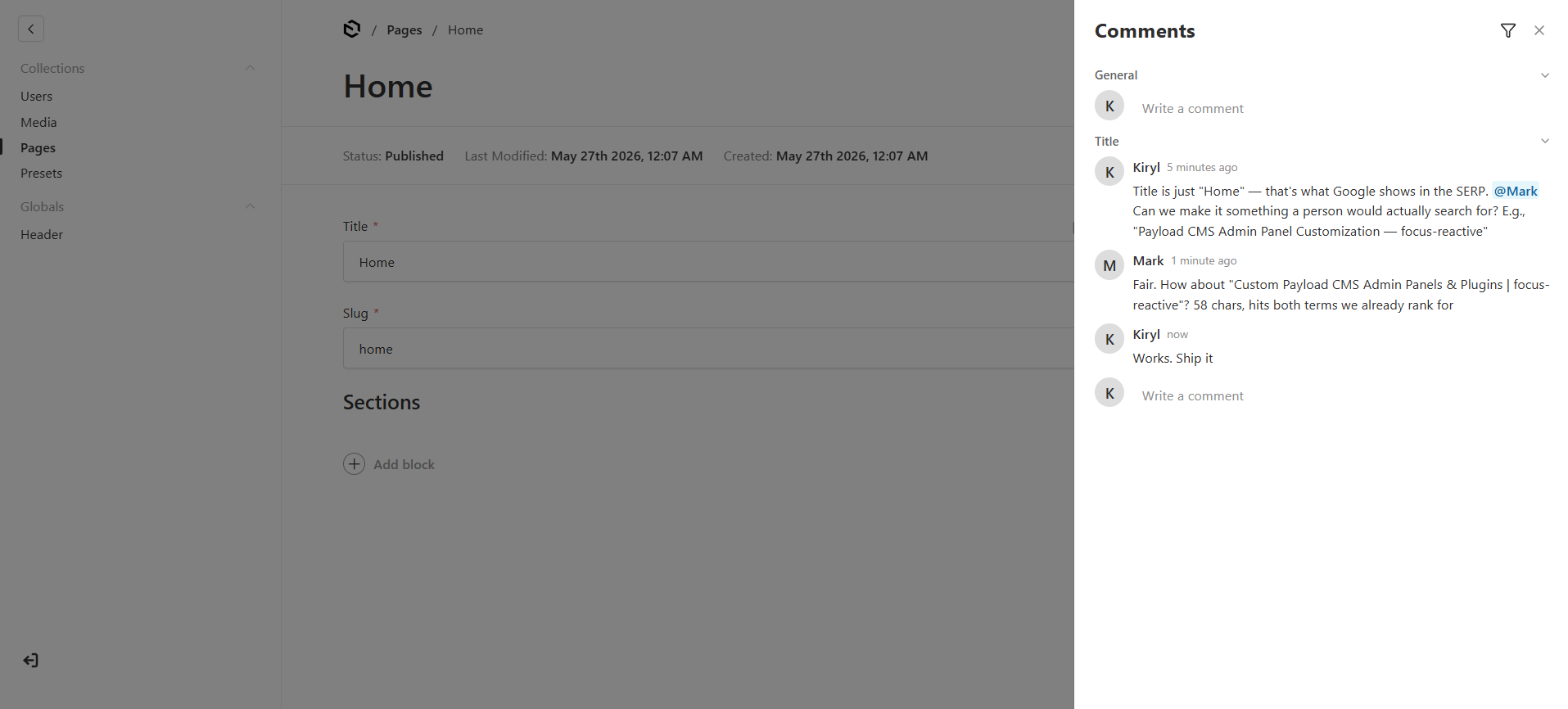 The document-scoped comments panel groups threads by field — a General section for document-level notes and per-field sections like Title, with an @mention resolved against the users collection.
A resolution workflow marks threads open or resolved, with Open / Resolved / Mentioned-me filters that turn comments into a tracked queue rather than a stream of orphan notes. Before publishing, an editor can sweep a document for unresolved threads instead of skimming every field; a reviewer assigned to several documents can pull up everything mentioning them in one filter. Resolved threads stay attached for audit — the surface clears, the history doesn’t.
A global comments panel sits behind a header button on every admin page and lists every open thread across every document and global in one view. The same Open / Resolved / Mentioned-me filters apply at the cross-document level, so an editor-in-chief or content lead sees the team’s full open workload from anywhere in the admin — not just from the document they happen to have open.
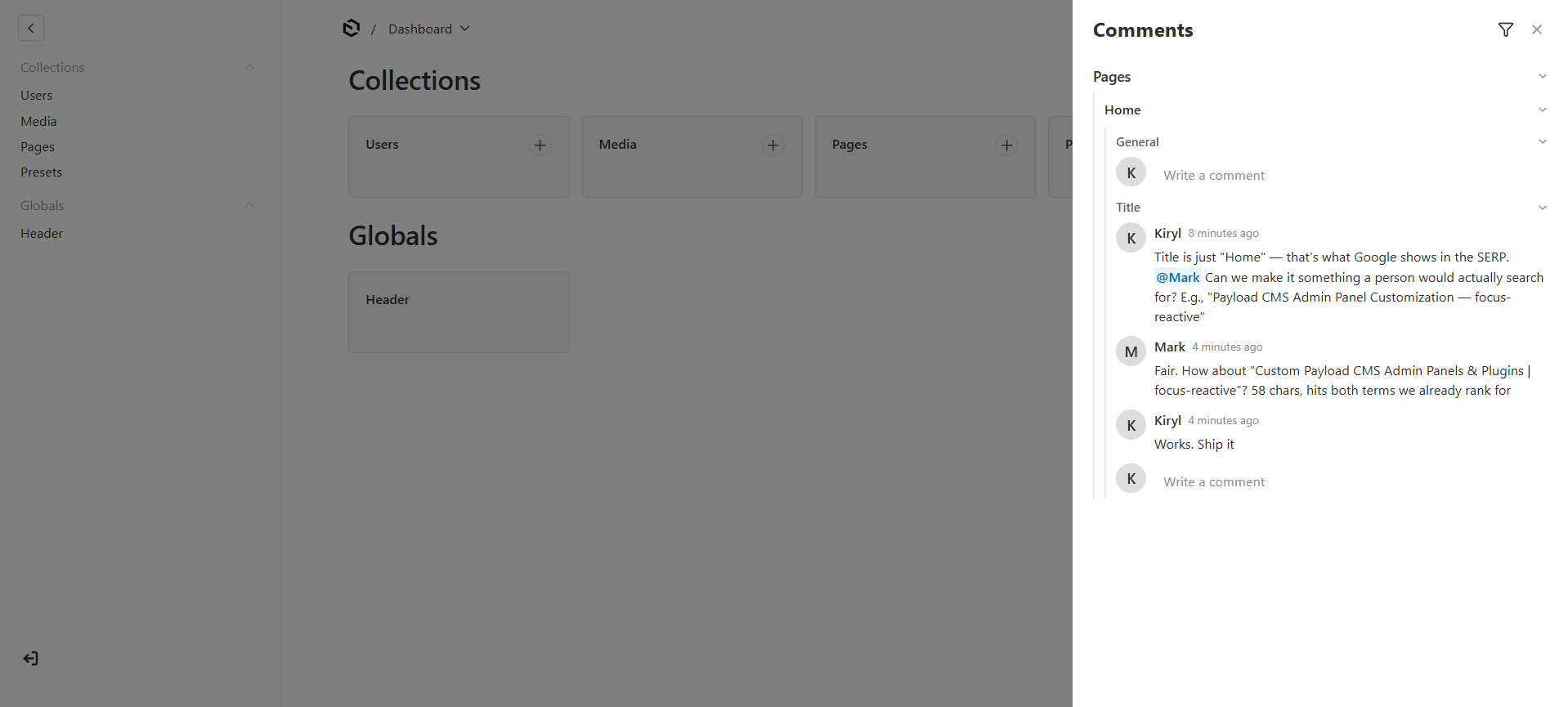 The global comments panel opened from the dashboard — every open thread across every collection and global in one view, grouped by document.
How the plugin is wired
The entire install is one entry in the plugins array. Everything else happens when Payload calls that entry with the host config.
import { buildConfig } from "payload";
import { commentsPlugin } from "@focus-reactive/payload-plugin-comments";

export default buildConfig({
  plugins: [
    commentsPlugin({
      collections: [{ slug: "pages", titleField: "title" }],
    }),
  ],
  // ... rest of your config
});
When Payload boots, that commentsPlugin(...) call receives the host config and returns a transformed one. It walks every collection and every global in the host config and injects our FieldCommentLabel component into each field’s admin label — that single patch is what produces the per-field comment badge editors see everywhere. It registers a hidden comments collection that stores the underlying data: collection slug, document id, field path, locale, mentions, resolution state. And it appends two providers and one header action to admin.components so the document-scoped state and the global drawer are available on every admin page.
A plugin is what turns a one-off admin idea into a versioned, installable product — the same wiring ships across every project that needs it, without being rebuilt.
Need an admin that matches how your team actually works? See how we approach Payload CMS alternatives.


.png&w=828&q=90)





%2520(1).png&w=828&q=90)
