.png&w=1920&q=90)

In 2026, two of the most prominent options among visual website platform are Webflow and Framer. Webflow has been a leading no-code website builder since its launch in 2013, while Framer, originally introduced in 2013 as a prototyping tool, has been our preferred platform since 2020.
Both let teams design, publish, and manage websites without relying on engineers for every update, but they approach the workflow differently. Framer centers its experience around a flexible visual canvas, while Webflow combines visual design with a more structured website-building environment.
This guide compares Framer vs. Webflow and looks at the strongest Webflow alternatives for marketing and design teams in 2026.
Framer vs Webflow comparison at a glance
In a nutshell: Framer wins on speed from design to live page, Webflow wins on CMS capacity, permissions and multi-market structure. Prices are monthly, billed yearly, checked October 2026.
| Feature | Framer | Webflow |
|---|---|---|
| Best for | Campaign pages, launches, design-led sites | Content hubs, multi-market and multi-editor sites |
| Building model | Free-form canvas, components, effects | Class-based styling, components, relational CMS |
| Entry price | Basic $10 (1,000 CMS items) | Basic $15 (no CMS) |
| CMS plan | Pro $30: 2,500 items, 10 collections | Premium $25: 20,000 items, 40 collections |
| CMS ceiling | 40,000 items via paid add-ons | Custom on Enterprise |
| Pages | Pro: 150, expandable to 700 | Basic: 300 static pages |
| Extra editors | $20 full editor, $10 content editor, viewers free | Full seat $39, Limited seat $15, free reviewer seats |
| Localization | $20 per locale, up to 20 | Localize from $9/month (Essential) or $29/month (Advanced) |
| Staging | Pro only, with branching | Free webflow.io staging on every site |
| A/B testing | Convert add-on: $50 per 500,000 events | Optimize add-on: from $299/month |
| Ecommerce | No native checkout; Shopify or Stripe via plugins | Native Ecommerce plans with checkout |
| Custom code | React code components and overrides | Custom code (50,000 characters per slot), React code components via DevLink |
| Run an app on the same domain | Advanced Hosting reverse proxy (Pro add-on) | Webflow Cloud: Next.js or Astro on a subpath |
| Code export | None for the full site | HTML/CSS/JS on paid Workspace plans, without CMS |
| AI | Agents, Workshop, AI translation on monthly AI credits | AI Assistant, AI SEO metadata, App Gen |
Sources: Framer pricing, Webflow pricing, Webflow code export, Webflow Cloud, Framer AI credits, Webflow Conf 2025 recap.
Webflow vs. Framer: Which Is Better for Marketing Teams in 2026?
Short answer: Framer is better for marketing teams whose bottleneck is turning a design into a live campaign page quickly. Webflow is better for marketing teams that run a large, content-rich, multi-page or multilingual website over several years.
⬛ Framer costs less at entry level ($10/month vs. $15/month, annual billing, October 2026).
🟦 Webflow gives far more CMS capacity per dollar: 20,000 CMS items on its $25/month Premium plan, compared with 2,500 on Framer’s $30/month Pro plan.
What is the main difference between Webflow and Framer?
Framer is a canvas-first website builder built for going straight from visual design to a published page. Webflow is a structured visual development platform built around class-based styling, reusable components and a relational CMS. Both let marketing teams publish without engineers. They optimize for different workflows.
Framer: Visual idea → Design on canvas → Add content → Publish Webflow: Content model → Design system → Templates → Manage content → Scale
- Framer puts visual freedom and iteration speed first. It bundles a canvas, CMS, SEO controls, forms, analytics and hosting in one tool [Framer, ref 4].
- Webflow puts structure and long-term governance first. Its class system, CMS collections and Localize add-on suit sites with many page types, editors and markets.
Framer is not only for one-page sites, and Webflow is not only for technical teams. The difference is what each platform makes easy by default.
Let’s emphasize the target audience of the
Famer and Webflow Target Audience
While Framer and Webflow both empower users to build highly customized websites and landing pages without writing traditional code, they target fundamentally different users based on technical background and project scale.
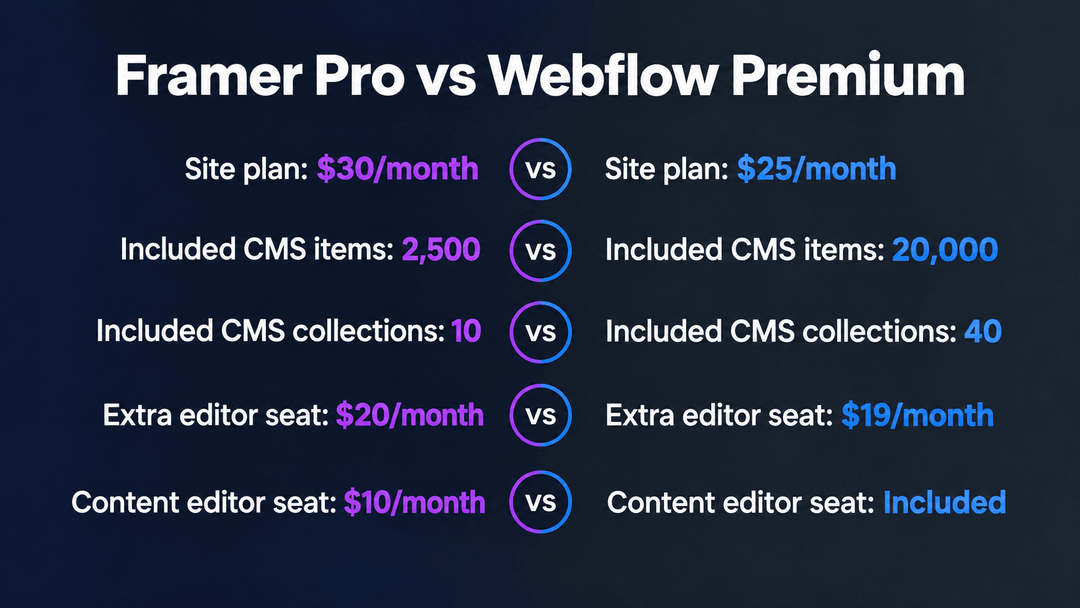 webflow vs framer pricing plans
Framer: The Designer’s Fast Track
Framer is built primarily for visual designers, creative studios, and early-stage startup founders who prioritize speed, aesthetics, and rapid iteration. It operates much like a design tool (similar to Figma), allowing users to draw elements on a canvas and instantly publish them to the web.
- Core Users: UI/UX designers, solo founders, freelance creatives, and boutique agencies.
- Key Use Cases: Startup landing pages, creative portfolios, event websites, and minimum viable products (MVPs).
- Why they choose it: The learning curve is virtually non-existent for anyone familiar with modern UI design tools. Framer excels at out-of-the-box animations, interactive prototypes, and launching a polished, fast-loading site in a matter of hours rather than weeks.
Framer is a go-to option for creative minds, web designers, small and middle-sized team where you need to create somtheing fast, while Webflow website builder is a more deep choice for
Webflow: The Developer’s Visual Engine
Webflow targets users who need deep, granular control over site architecture, scalable content, and complex integrations. It is essentially a visual interface for writing actual HTML, CSS, and JavaScript, requiring users to understand the box model and web development principles.
- Core Users: Front-end developers, enterprise marketing teams, large web design agencies, and content managers.
- Key Use Cases: Large corporate websites (e.g., Dell, Rakuten), complex eCommerce storefronts, high-traffic blogs, and highly integrated marketing hubs.
- Why they choose it: Webflow offers unmatched structural flexibility and scalability. Its robust Content Management System (CMS) easily handles thousands of dynamic pages, while its extensive API and integration ecosystem (like Zapier) allows businesses to connect their site directly to CRMs and complex marketing stacks.
If you need to develop a Business site or an Ecommerce store, create a Portfolio or a Blog, or some other custom site types, Webflow is your choice #1.
Website Builder Integration
When comparing integrations, look beyond whether a platform connects to your tools and consider ownership: who will set up each connection, maintain it, and troubleshoot issues when something changes? Webflow supports workflows through apps, APIs, and automation tools, including routing leads into a CRM and updating CMS content. Framer supports common marketing connections through integrations, plugins, custom scripts, and form webhooks.
For your startup, the better fit depends on how those connections will work in practice. Can your marketing team manage the setup independently, or will it require developer support? Will data move in one direction, or does your workflow require updates across systems? Evaluating these requirements upfront gives you a more useful comparison than the number of integrations each platform offers. Whether you use a template, or AI site builder, t
Agency Handoff: Can You Transfer a Site Without Breaking Anything?
Short answer: Yes on both platforms — but the mechanics differ, and the subscription question matters more than the transfer itself.
Webflow. Site plans are attached to the site, and sites can be transferred between Workspace accounts. The recommended agency pattern is the reverse of a handoff: the client owns the Workspace and site plan, and invites the agency as a Guest with a site-level role (Designer or Content Editor). Guest access is scoped to specific sites, is revoked in one click, and never requires sharing passwords or billing credentials (Webflow University — Guest role, Agency or Freelancer Guest role). On Enterprise, custom roles can scope access down to specific sites, collections, and locales (Webflow University — Enterprise custom roles).
Framer. Sites live in a Workspace owned by whoever holds the subscription. Handoff therefore usually means either transferring project ownership or — cleaner — building the site in a client-owned Workspace from day one. Admins manage members, billing, and projects; the transfer itself does not move a subscription (Framer — Member roles and permissions).
What to test before you write a definitive answer: the exact steps and downtime (if any) of a Webflow site transfer between Workspaces on current plans, and whether a Framer project can move between Workspaces without recreating the CMS.
Contractor Access: Can Freelancers Work on Selected CMS Collections Only?
Short answer: Partially. Neither platform offers per-collection access on standard self-serve plans; Webflow Enterprise does.
Webflow. Standard roles are Admin, Designer, and Content Editor. Content Editors work in the simplified Editor (or the newer edit role in the Designer) and can add, edit, and publish CMS items — but they see the site’s collections, not just one (Webflow University — Quick guide: Content editor role, Site roles in Webflow). Restricting access to specific pages, collections, or locales is an Enterprise custom roles capability (Webflow University — Enterprise custom roles). Guests can be invited per-site, which is the closest self-serve approximation.
Framer. The Content Editor role manages CMS content, localization, and on-page editing across the workspace it belongs to; granular Design/Content/Deploy permissions exist on plans that support advanced permissions, but collection-level scoping is not documented on Basic/Pro (Framer — Member roles and permissions).
What to test: whether a Framer workspace can be structured as one workspace per client/brand to approximate per-collection access, and what a Webflow Content Editor can and cannot see in the current Editor UI.
Campaign Production: Can Marketers Build Landing Pages From Approved Components?
Short answer: Yes on both — this is exactly what each platform’s component model is for — but the guardrails differ.
Webflow. Content editors can build pages from templates and components, but cannot create or modify components, classes, or variables — the design system stays locked (Webflow University — Quick guide: Content editor role). Components can be synced as a shared Library across sites in a Workspace (Growth/Agency Workspace plans and above), which is how agencies distribute an approved design system across many client sites (Webflow — Updates to Webflow’s Site and Workspace plans).
Framer. Components on the canvas are the native building blocks; the CMS and on-page editing let editors publish structured content while designers keep control of layouts (Framer — Solutions for engineers). The trade-off: anyone with Editor-level canvas access can modify components themselves, so the design-system protection depends on role discipline rather than a hard permission boundary.
What to test: whether Framer’s advanced granular permissions (Design permission toggle) on Pro can effectively lock components while leaving page assembly open, and how Webflow’s per-user “Can publish” toggle interacts with new landing pages built from components.
Publishing Safety: Can a Blog Post Go Live Without Releasing a Designer’s Unfinished Changes?
Short answer: Yes on Webflow (single-item publishing and draft states), and yes on Framer when staging is enabled — with caveats on each side.
Webflow. This used to be Webflow’s biggest editorial pain point and it is now largely solved: individual CMS items can be published without publishing the whole site, and edits to already-published items are saved in a “Draft changes” state that never touches the live site until released (Webflow — Publish individual CMS items, Improvements to the CMS Drafting and Publishing Workflow). Publishing is a per-user “Can publish” toggle, so you can decide per teammate whether they may push content live (Webflow University — Publishing permissions & workflows). Full-site publishes, staging (webflow.io subdomain), and — on higher plans — page branching keep in-progress redesigns out of production (Webflow University — Enterprise publishing workflow).
Framer. With staging enabled (Pro plan and higher), any project member can publish to staging, but only members with Deploy permission can promote changes to the live site (Framer — Member roles and permissions, Framer — Publishing your Framer website). On Basic, there is no staging environment, so publishing safety depends entirely on role discipline.
What to test: edge cases — Webflow blocks single-item publishing in some situations (collection structure changed, multiple domains published at different times, circular references), which is worth documenting with a real example (Webflow — Publish individual CMS items).
Multi-Site Costs: What Does Managing Several Brands Actually Cost?
Short answer: Both platforms bill per site for hosting, but their collaboration pricing differs — Webflow charges per Workspace seat, Framer charges per editor seat — and that difference compounds with team size.
Webflow. A Site plan is attached to each site: Basic at $15/month and Premium at $25/month, billed yearly (Webflow — Plans & pricing). Collaboration happens in Workspaces, priced per seat (Starter free, Core $19/seat/month, Growth $49/seat/month, then Enterprise), and the Guest role gives per-site access without a full seat (Webflow — Updates to Webflow’s pricing and plans, Webflow University — Guest role). A 3-brand setup on Premium is 3 × $25 in Site plans plus one shared Workspace seat cost.
Framer. Site plans are also per site — Basic $10/month, Pro $30/month, billed yearly — and seats are billed per editor: additional editors at $20/month each, content editors at $10/month each, viewers free (Framer — Pricing, Framer — Site plans explained). Pro limits (pages, CMS items, collections, bandwidth) can be extended with paid add-ons: e.g. $20 per 10,000 CMS items up to 40,000, and $40 per 10 CMS collections up to 40 (Framer — Pricing).
Framer vs Webflow CMS: limits and content modeling
Webflow’s CMS holds nearly ten times more items per dollar and comes with a mature API; Framer’s CMS is simpler and tied to the Framer site it powers. In practice, though, the limits teams run into aren’t the headline item counts — they’re the smaller rules that shape how pages get built.
Webflow CMS limits that shape page design
- 100 items per Collection list. Pagination shows 100 per page. To show items 101–200 on one page, duplicate the list and set “Skip 100”.
- 40 Collection lists per page, nested lists included, and every duplicated list counts.
- 10 nested lists per page, three levels deep at most.
- API rate limits: 60 requests per minute on Starter and Basic, 120 on CMS, eCommerce and Business plans. Site publishing is capped at one successful publish per minute. Bulk endpoints accept up to 100 items per request, so batch your syncs.
Sources: Webflow dynamic content limits, Webflow API rate limits, Webflow CMS localization API.
Framer CMS limits that shape growth
- Item and collection caps: 1,000 items and 2 collections on Basic; 2,500 items and 10 collections on Pro, expandable to 40,000 items and 40 collections with paid add-ons.
- Writing from outside Framer: the Plugin API only runs while the editor is open. The Framer Server API lets a script on your server update the project and publish it, for example syncing a Notion database on a schedule.
- One destination: Framer’s CMS feeds the Framer site. If the same content must reach an app, a second site or a newsletter, treat that as a signal you need a headless CMS.
Do CMS-generated pages count toward page limits?
No. Both platforms count static pages separately from CMS items. Count unique layouts (homepage, pricing, landing pages) against the page limit, and blog posts, case studies and other template-driven records against the CMS item limit.
For product owners: if your content has to feed an app, a docs site or a second brand, neither CMS is built for that job. That’s usually the point where a headless CMS starts paying for itself.
Is Webflow or Framer better for SEO?
Both can rank well — good content and links will outweigh any platform difference. Where they part ways is rendering, URL control and a handful of setup traps that are easy to miss until traffic drops.
How each platform renders pages
Framer pre-renders every page to static HTML at publish, then React hydrates it in the browser. Crawlers get full HTML, so indexing is not the risk; the JavaScript cost of hydration is, and it shows up in Interaction to Next Paint (INP). Framer preloads only the modules each page uses to cut that delay (technical write-up, May 2026). Heavy code components and very different breakpoint layouts still add weight.
Webflow publishes static HTML and CSS with interaction scripts on top. Its page weight depends mostly on how many interactions, embeds and third-party scripts you add.
Framer SEO traps
- *.framer.app domains are not indexed by search engines; always publish on a custom domain or *.framer.website.
- Setting a canonical URL requires the Advanced Hosting add-on.
- Serving Framer under a subdirectory (example.com/blog) also needs Advanced Hosting, and project page paths must match the proxied path.
Source: Framer reverse proxy guide.
Webflow SEO traps
- 301 redirects only match paths from the root domain. They don’t cover localized slugs or locale subdirectories, so each locale needs its own rule.
- You can’t redirect away from a live page. Delete it, draft it or change its slug first.
- Keep redirects under about 1,000 rules, Webflow’s recommendation. Use capture groups (.*) with
%1to consolidate. - Custom code is capped at 50,000 characters per head or footer slot; host larger scripts externally.
Sources: Webflow redirects, Webflow custom code.
Verdict: Webflow gives SEO teams more control out of the box. Framer is fine for SEO once it’s on a custom domain with a canonical set, but the controls that matter most at scale sit behind a paid add-on.
For product owners: if the marketing site has to live under your product domain (example.com/blog) or needs canonical control, budget for Framer’s Advanced Hosting add-on from day one rather than finding out after launch.
Framer vs Webflow for multilingual sites
Framer is the simpler, cheaper way to go multilingual; Webflow gives you tighter control over localized URLs, routing and assets on its Advanced tier. Either way you’ll pay extra — neither base plan is multilingual out of the box.
Quick comparison, one content-heavy brand, annual billing (October 2026):
| Line item | Framer Pro | Webflow Premium |
|---|---|---|
| Site plan | $30/month | $25/month |
| Included CMS items | 2,500 (add $20 per 10,000, max 40,000) | 20,000 |
| Included CMS collections | 10 (add $40 per 10, max 40) | 40 |
| Extra editor seat | $20/month | Workspace seat (Core $19 / Growth $49) |
| Content editor seat | $10/month | Limited seat (no separate charge on paid Workspace plans) |
[Agency note — insert a worked multi-brand cost example from one of your client setups, e.g. 3 brands × team of 5 on each platform.]
Localization Features
| Feature | Framer | Webflow |
|---|---|---|
| Price | $20 per locale per month, up to 20 locales | Localize Essential $9/month (1–3 locales, 10,000 words/month); Advanced $29/month (1–10 locales, 50,000 words/month), priced by number of locales |
| Translated URLs | Yes: “Translate Page Paths” setting, CMS slugs included | Advanced tier only |
| Visitor routing | Locale switcher | Automatic routing on Advanced and Enterprise, via 302 redirects |
| hreflang | Check the published HTML | Generated automatically in page head and sitemap |
| AI translation | Uses workspace AI credits | Included word allowance per tier |
(Sources: Framer pricing, Framer localized page paths, Webflow pricing, Webflow localized SEO and routing.)
[Agency note — insert a worked multi-brand cost example from one of your client setups, e.g. 3 brands × team of 5 on each platform.]
Localization: Do Translated CMS Records Count Toward Item Limits?
Short answer: Both platforms bill localization per locale as an add-on, and neither publishes clearly whether translated CMS records count toward the item cap — budget for the worst case and test before committing.
Webflow. Localize is a Site-plan add-on priced per added locale: Essential at $9/locale/month (up to 3 locales, 10,000 AI-translated words per locale per month) and Advanced at $29/locale/month (up to 10 locales, 50,000 words, plus localized URL slugs, asset localization, and visitor routing) (Webflow — Plans & pricing, Webflow — Website localization services). Webflow’s documentation states that individual CMS items are unique to each locale — each locale has its own set of Collection items — but does not spell out how localized items are counted against the plan’s 20,000-item cap (Superblog — Webflow localization pricing). A four-language site therefore needs the Advanced tier, since Essential caps at three added locales.
Framer. Translation locales cost $20/month per locale, up to 20 locales, identically on Basic and Pro (Framer — Pricing, Superblog — Framer localization pricing). Auto Translate runs on plan AI credits (1,000/month on Basic, 3,000/month on Pro) and translates CMS fields as they are edited. Framer’s pricing page does not state how localized items count against the CMS item limit; third-party guides report that every localized version of an item counts, which would make a 2,000-item site in three languages consume 6,000 items (Superblog — Framer localization pricing).
What to test (high-value, citable): create one CMS item, enable two locales, and watch the item counter on both platforms. Document the result — this is exactly the kind of primary-source finding that earns citations from AI engines, because neither vendor documents it.
Migration Readiness: What Can You Export, and What Must Be Rebuilt?
Short answer: Webflow exports more; Framer is the tighter walled garden.
Webflow. Code export (HTML/CSS/JS) is available on paid Workspace plans, and CMS content is accessible via the CMS API and CSV export (Webflow — Updates to Webflow’s pricing and plans). What does not survive an export: the Designer itself, interactions and animations in editable form, CMS binding logic, Localize translations, and Workspace-level features. An export is a snapshot, not a portable project.
Framer. There is no full code export; published sites can be fetched as static HTML, but the project, CMS structure, and components live only inside Framer (The Proof Desk — Framer review 2026). CMS content can be exported, and redirects plus rollback soften operational risk, but a platform move is effectively a rebuild.
Team workflows in Webflow vs Framer
Webflow draws harder permission lines; Framer leans on role discipline. That’s no big deal for a team of three, but it quickly becomes one when agencies, freelancers and in-house marketers all work on the same site.
Can an agency hand off a Webflow or Framer site to a client?
Yes on both — but who pays for the subscription matters more than the transfer itself.
- Webflow: Site plans are attached to the site, and sites can be transferred between Workspaces. The cleaner agency pattern is the reverse of a handoff: the client owns the Workspace and site plan, and invites the agency as a Guest with a site-level role. Guest access is scoped to specific sites, revoked in one click, and never requires sharing passwords or billing details (Guest role, Agency or Freelancer Guest role).
- Framer: Sites live in a workspace owned by whoever holds the subscription. Handoff means transferring project ownership or, more cleanly, building in a client-owned workspace from day one. Transferring a project does not move its subscription (Framer member roles).
Can freelancers edit only certain CMS collections?
Not on standard plans. Webflow Enterprise is the exception.
- Webflow: Content Editors can add, edit and publish CMS items, but they see all of the site’s collections (Content editor role). Restricting access to specific collections, pages or locales requires Enterprise custom roles (Enterprise custom roles).
- Framer: The Content Editor role covers CMS content, localization and on-page edits across the workspace. Collection-level scoping is not documented on Basic or Pro (Framer member roles).
Can marketers build landing pages from approved components?
Yes on both; the guardrails differ.
- Webflow: Content editors can build pages from templates and components but cannot create or change components, classes or variables, so the design system stays locked (Content editor role). Agencies can share a component Library across sites in a Workspace on higher Workspace plans (Webflow plan updates).
- Framer: Components are the native building blocks, and Content Editors publish structured content without touching layouts. Anyone with full editor access can still change components, so protection depends on who gets which seat.
Can a blog post go live without publishing a designer’s unfinished changes?
Yes on Webflow, and yes on Framer once staging is switched on. This used to be Webflow’s biggest editorial pain point; today it’s largely solved.
- Webflow: Individual CMS items can be published without publishing the whole site, and edits to live items stay in a draft state until released (Publish individual CMS items, CMS drafting improvements). A per-user “Can publish” toggle controls who can push content live. Single-item publishing is blocked in some cases, such as after a collection’s structure changes.
- Framer: With staging enabled on Pro and above, any project member can publish to staging, but only members with Deploy permission can promote changes to the live site (Framer member roles, Publishing your Framer site). Basic has no staging, so every publish goes straight to production.
For product owners: make sure your company — not the agency — owns the workspace and billing from day one. It’s the cheapest insurance against getting locked in to a vendor relationship.
Integrations and forms in Webflow and Framer
Both platforms plug into a typical marketing stack. The real question is who sets up each connection — and who looks after it once that person moves on. Webflow integrates through apps, its Data API and automation tools. Framer integrates through plugins, custom scripts and form webhooks.
How do you embed a form in Webflow or Framer?
- Native forms: both have a built-in form builder. Webflow allows 50 submissions on the free Starter plan and unlimited on paid site plans. Framer forms can send submissions to email or a webhook.
- Third-party forms (HubSpot, Typeform, Tally): paste the provider’s embed code into Webflow’s Code Embed element or Framer’s Embed component.
- CRM routing: use the form provider’s native integration, or a webhook into Zapier or Make, rather than scraping submissions after the fact.
What happens to integrations when the person who set them up leaves?
Neither platform solves this for you; it’s a process problem.
- Webflow: apps, API keys and automations are managed at site or Workspace level, so access survives a personnel change if connections live under a shared Workspace. They break when someone wires automations through a personal Zapier account or API key.
- Framer: integrations, plugins, scripts and webhooks are project settings managed by Admins, but the credentials behind them are only as durable as the accounts that own them.
Handover checklist for both: list every connection, record who owns each credential, move automations to a shared service account before launch, and name the integration owner in the handover document.
Framer vs Webflow: final verdict
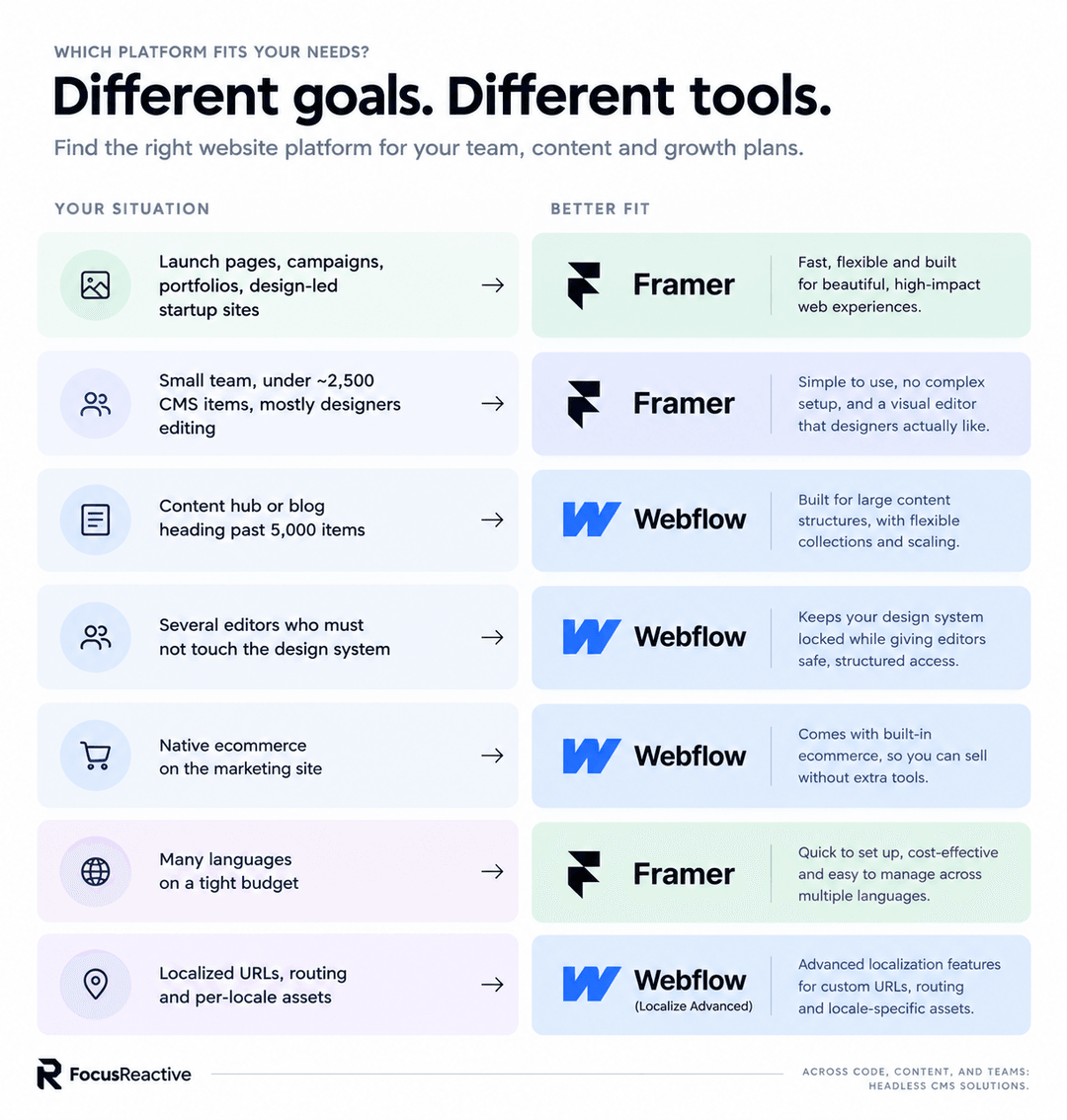
Webflow or Framer? Pick Framer if your team designs first and ships often; pick Webflow if your site runs on content, many editors and several markets. Both are solid website builders — the wrong choice is simply the one that fights your team’s workflow.
 webflow vs framer
When have you outgrown both?
Sooner or later, some teams hit the ceiling of any visual builder. Watch out for these signs:
- Your content needs to feed an app, a docs site or more than one brand.
- You keep working around CMS item caps, Collection list limits or API rate limits.
- The site needs logic a visual builder can’t handle well: authentication, personalization, pricing pulled from your product.
- Per-locale redirect and routing rules have turned into a maintenance job of their own.
At that point, a Next.js frontend with a headless CMS such as Sanity, Storyblok, Contentful or Payload usually makes more sense than another plan upgrade — and that’s where we come in.
Use case: Firsty moves from Webflow to Storyblok
Firsty, an eSIM provider, “hit a critical technical ceiling with their existing Webflow website.” We rebuilt it on Next.js 15 and Storyblok, hosted on Vercel. Here’s what that changed:
- 190+ country pages on one platform, with AI-assisted localization in 6 languages
- Live pricing pulled into regional pages from an external API, so nobody updates tariffs by hand
- eSIM checkout right on the site through the Adyen payment gateway
- Marketing works on its own, building pages and grouping countries by region without developer help
- 60% faster page publishing and 3× faster campaign launches
We take care of the CMS migration end to end: content structure, URLs, metadata and redirects included. Running on Webflow today? See how we migrate from Webflow to Payload CMS — a typical project takes 4–8 weeks.
At FocusReactive, we help teams move off website builders and onto a headless CMS without putting their SEO at risk. We work with real estate agencies juggling hundreds of listings, wellness studios with class schedules and bookings, consulting firms and law firms that win clients through content, home services businesses covering several locations, and early-stage startups that are about to outgrow their launch site.
We take care of the CMS migration end to end: content structure, URLs, metadata and redirects included. Running on Webflow today? See how we migrate from Webflow to Payload CMS — a typical project takes 4–8 weeks. Not ready to commit yet? Size up your move first with our free CMS Migration Estimator.



.png&w=828&q=90)